
Introduction
The functionality of your iPad’s headphone jack is crucial for a quality audio experience, whether you’re listening to music, watching videos, or taking important calls. But when the headphone jack stops working, it can be an unexpected inconvenience. Fortunately, with the right guidance, many of these issues can be resolved quickly. This guide covers practical steps to troubleshoot and fix your iPad’s headphone jack issues, helping you get back to enjoying your device.
Understanding the Issue
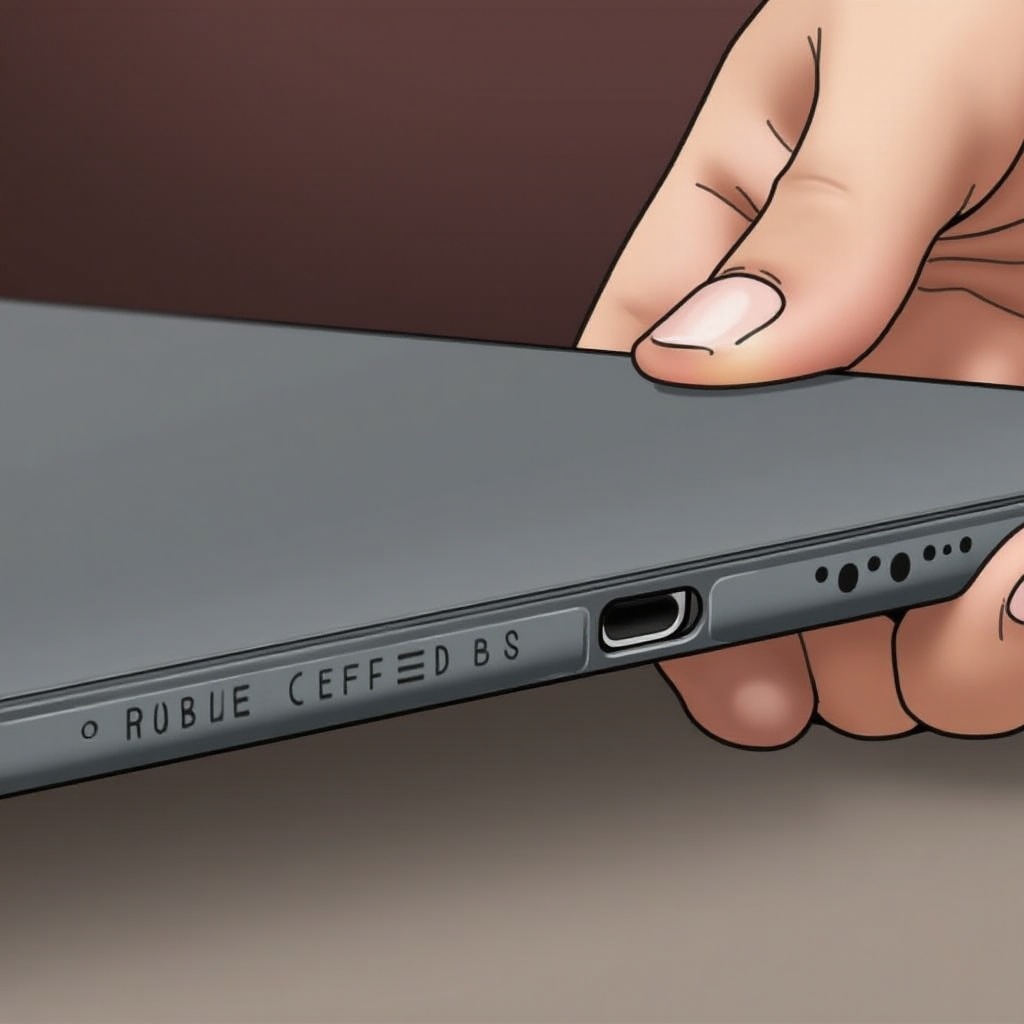
To effectively address the problem, it helps to understand why the headphone jack might be malfunctioning. Common symptoms include distorted sound, complete audio failure, or intermittent audio cutouts. These problems might be caused by either hardware damage or system-level glitches. Identifying the potential cause is an essential part of resolving the issue.
Basic Troubleshooting Steps
To tackle the problem, start with these straightforward troubleshooting steps:
-
Check for Debris: Look inside the headphone jack with a flashlight to check for any debris or lint. Carefully remove it with a toothpick or a burst of compressed air, taking care not to damage the port.
-
Verify Headphone Functionality: Confirm whether the problem lies with your headphones by testing them on a different device. If they work elsewhere, the issue likely resides with your iPad.
-
Restart Your iPad: Sometimes a simple restart is all that’s needed. Hold down the power button to turn off your iPad, wait a few seconds, then turn it back on to see if the issue has been resolved.
If these basic methods don’t work, there are more technical steps you can take to diagnose and potentially fix the problem, especially if it turns out to be software-related.
Software Solutions to Try
When dealing with a software-related issue, these solutions might restore your headphone jack’s functionality:
-
Update Your iOS: Ensure your iPad is running the most current iOS version by navigating to Settings > General > Software Update. Many audio issues are resolved through updates.
-
Reset Audio Settings: Go to Settings > General > Reset > Reset All Settings. This resets your system settings but preserves your data, often fixing audio problems in the process.
-
Check for App Interference: Apps can sometimes interfere with audio outputs. Close unnecessary apps, and reinstall any problematic ones to ensure they’re not causing the issue.
By addressing potential software issues, you can often resolve headphone jack problems without needing to consider hardware fixes.
Advanced Troubleshooting Techniques
If basic and software troubleshooting doesn’t resolve the issue, consider these advanced techniques:
-
Testing with an Audio Splitter: Use an audio splitter to check if other devices are recognized by your iPad. If they are, the issue might be with the detection circuit of the headphone jack.
-
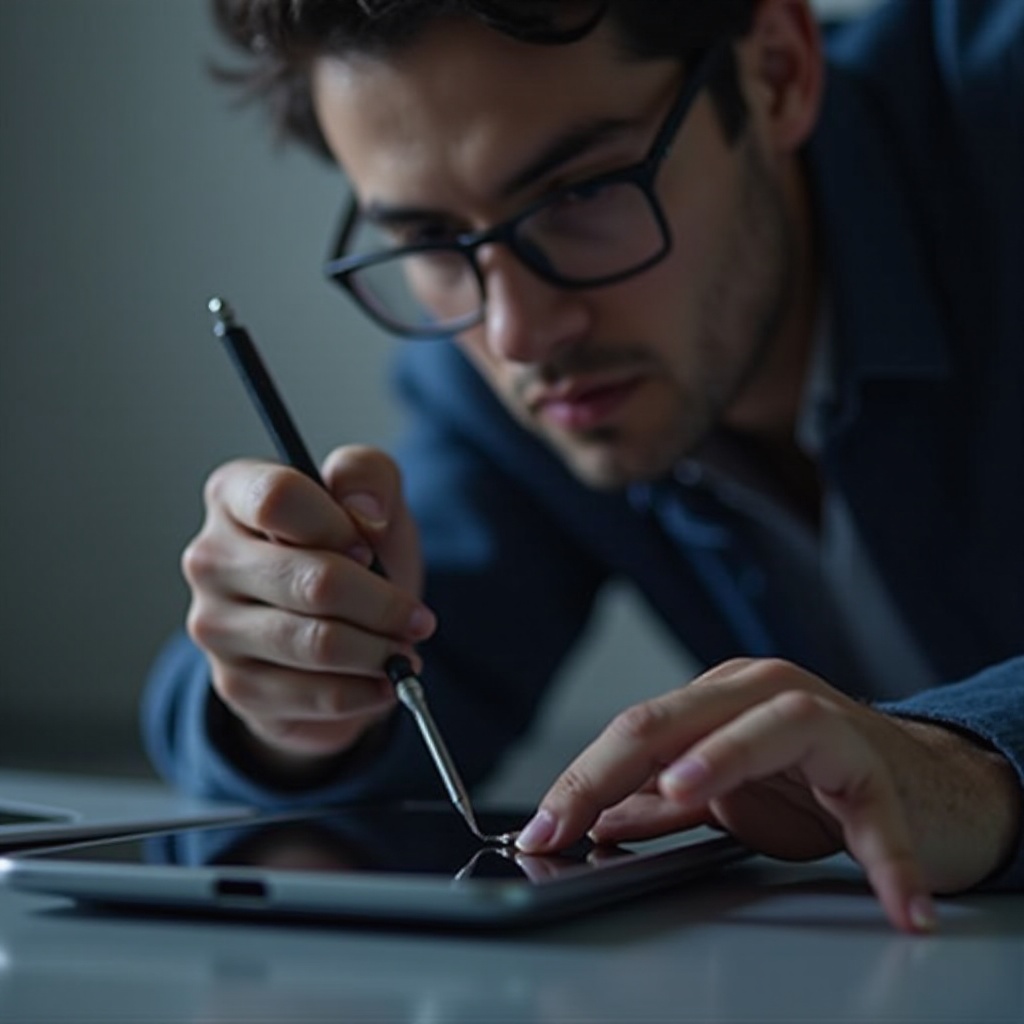
Inspecting for Physical Damage: Inspect the port for physical damage, such as bent pins or obstructions that might impede the proper functioning of the jack. If you detect damage, further inspection by a professional might be necessary.
-
Exploring Repair Options: If your iPad is still under warranty, reach out to Apple Support or visit an Apple authorized service provider to explore repair or replacement options.
Effective diagnosis of persistent problems will guide you toward the right repair solutions, securing the continued functionality of your iPad’s headphone jack.
When to Seek Professional Help
If none of these solutions fix the problem, it may be time to consult a professional technician. They can diagnose complex issues that might not be apparent to the average user. In the meantime, using Bluetooth headphones can serve as a temporary fix until the problem is professionally addressed.
Preventative Measures for Future
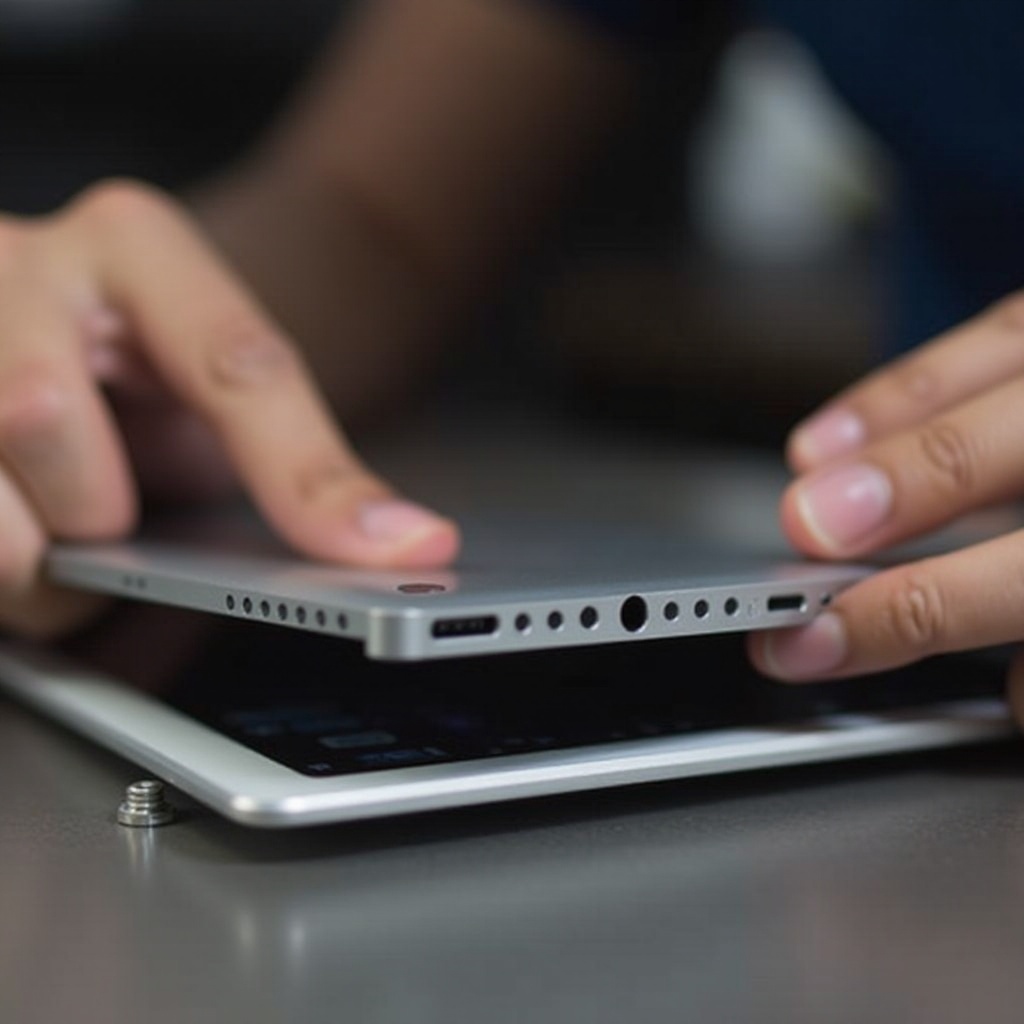
Preventing future headphone jack issues involves regular care and maintenance:
- Regularly clean the jack to prevent dirt buildup.
- Handle headphones gently to prevent damage from sudden pulls.
- Keep your device updated to benefit from fixes included in iOS updates.
- Opt for Bluetooth headphones to minimize wear on the physical jack.
Adopting these preventative measures will help ensure long-term functionality of your iPad’s headphone jack and overall longevity of the device itself.
Conclusion
While a malfunctioning headphone jack can be frustrating, most problems have straightforward solutions. By following these troubleshooting tips and preventive measures, you can restore audio functionality and maintain your iPad’s performance. Should difficulties persist, seeking professional help ensures you get the best outcome for your device.
Frequently Asked Questions
Why is my iPad not recognizing my headphones?
Your iPad might not recognize your headphones due to debris in the jack, a software glitch, or headphone malfunction. Cleaning the jack and updating iOS might help.
Can a software update fix my headphone jack issue?
Yes, a software update can resolve bugs affecting audio output. Check for the latest iOS updates, as they often include fixes for known issues.
Is it worth repairing the headphone jack on an older iPad?
Consider factors such as repair cost and future usability. If repairs exceed the value or utility, upgrading to a newer model might be more beneficial.