
Introduction
Connecting your Samsung TV to external devices like gaming consoles, Blu-ray players, or streaming gadgets depends largely on HDMI connections. These ports allow for seamless audio and video transmission, enhancing your entertainment experience. When you know how to navigate to HDMI on your Samsung TV, you unlock endless media possibilities.
Switching to the HDMI input on your Samsung TV might seem straightforward, yet specific steps ensure everything functions smoothly. This guide simplifies the process, helping you maximize your TV’s potential and enjoy a superior viewing experience.

Identifying HDMI Ports on Your Samsung TV
Before connecting, locating the HDMI ports on your Samsung TV is crucial for a quick and efficient setup.
- Check the Sides and Back: HDMI ports are typically located either on the back or the side of your Samsung TV. Examine these areas closely.
- Look for Labels: Ports are labeled as HDMI1, HDMI2, etc. This helps you identify which port you will connect your device to.
- Understand the Types: Some Samsung TVs come with standard HDMI ports, while others might offer specialized ports like HDMI-ARC for audio return channels.
Once you know the port location and type, you’re set to connect your device seamlessly.
Switching to HDMI Using Your Remote
Your Samsung TV remote control is a powerful tool for managing inputs. Here’s how you can use it efficiently:
- Utilize the Source Button:
- Locate the ‘Source’ button on your remote.
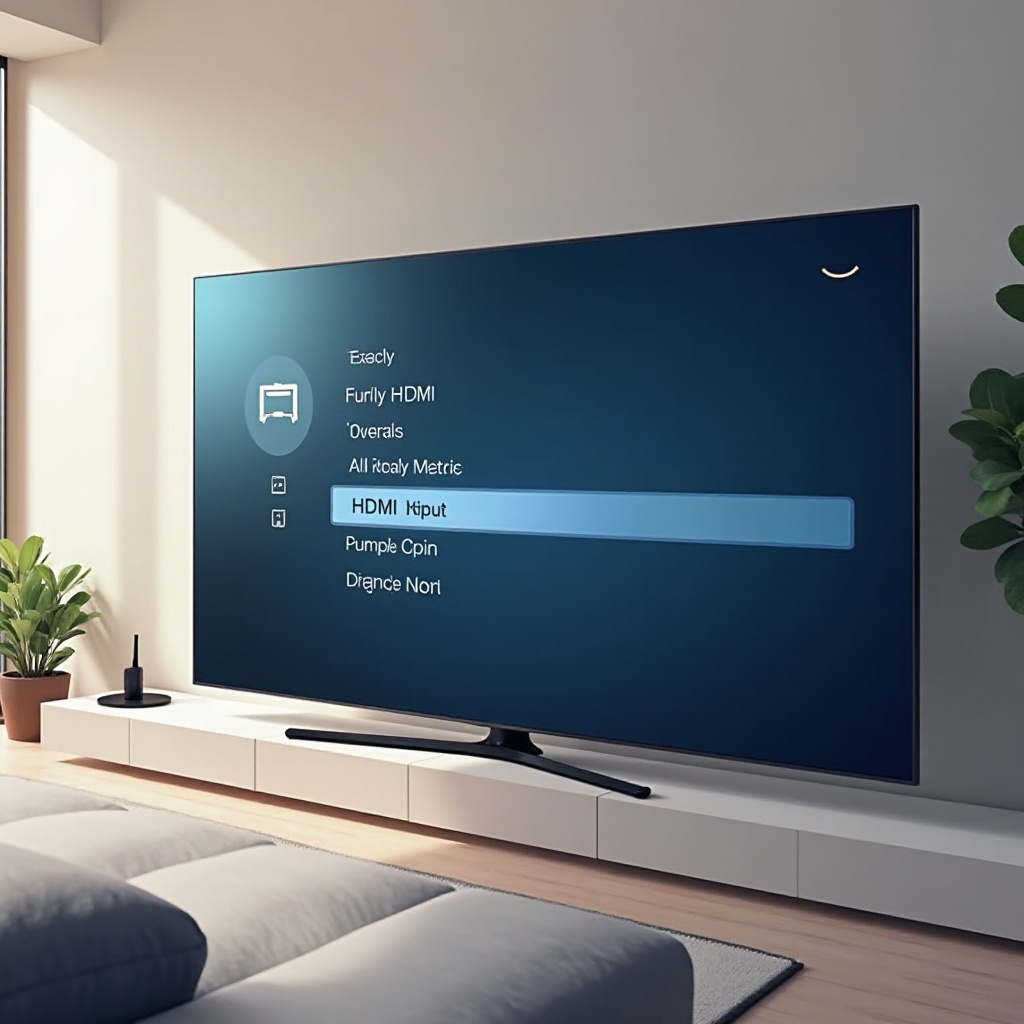
- Press it to open the input menu on your TV screen.
- Use the navigation keys to select the HDMI port your device is connected to.
- Navigate the Menu for HDMI:
- If your remote lacks a direct source button, press the ‘Home’ or ‘Menu’ button.
- Access the input menu from there and select the HDMI option.
Selecting the correct HDMI input should display your content on the screen. If it doesn’t, verify that your device is powered on and properly connected.
Accessing HDMI via Samsung Smart Hub
The Samsung Smart Hub offers another user-friendly approach to managing your TV inputs.
- Setting Up Samsung Smart Hub:
- Press the ‘Home’ button on your remote.
- Navigate to and select ‘Settings.
- Choose ‘General,’ then ‘External Device Manager’ to ensure devices are recognized.
- Switching Inputs through Smart Hub:
- Use the Smart Hub to access various apps and inputs.
- Navigate to the input section and select the appropriate HDMI input from the available sources.
The Smart Hub streamlines navigation, allowing quick access to all your favorite devices from one centralized interface.
Troubleshooting HDMI Connection Issues
Even with the best setup, you may encounter issues. Here’s how to tackle common problems:
1. No Signal Error:
– Verify that both your TV and the connected device are powered on.
– Confirm that the cable is firmly plugged into both the TV and the device.
2. Incompatible Device Messages:
– Ensure the device is HDMI-compatible. Some older devices might require converters.
– Check the device’s firmware for updates that might resolve compatibility issues.
3. Ensuring Proper Cable Connection:
– Inspect the HDMI cable for any signs of wear or damage.
– Try using a different HDMI cable or port to determine if the issue lies with the cable.
Proper diagnosis can often resolve connection woes, ensuring effective communication between devices.
Advanced HDMI Features for Enhanced Experience
Once connected, enhance your experience with some of Samsung TV’s advanced features:
– HDMI-CEC (Anynet+): This allows devices connected via HDMI to be controlled with one remote, boosting convenience.
– eARC (Enhanced Audio Return Channel): For top-tier audio output, eARC delivers higher bandwidth and supports advanced audio formats. Enable these settings from the TV’s ‘External Device Manager.
Utilizing these features elevates your viewing and listening experience significantly.
Tips for Enhancing HDMI Performance
To truly get the most out of your HDMI setups, consider these additional tips:
– Ensure your HDMI cables are high quality to support high-definition signals and minimize lag.
– Keep your TV’s firmware updated, as updates often contain HDMI connectivity improvements.
– Regularly check connections to ensure they’re snug and debris-free.
Maintaining your HDMI setup ensures a consistent and top-notch media experience.
Conclusion
Knowing how to access and manage HDMI inputs on your Samsung TV truly enriches your entertainment options and allows you to enjoy content with superior quality. By following this guide, you should be well-equipped to switch inputs effortlessly and resolve common problems, ensuring you make the most of your Samsung TV.
Frequently Asked Questions
Can I rename my HDMI inputs on a Samsung TV?
Yes, you can rename your HDMI inputs by going to the ‘Source’ menu and selecting ‘Edit.’ This helps in remembering which device is connected to each input.
How can I use voice commands to switch to HDMI?
If your Samsung TV supports voice commands, use the voice assistant feature on your remote. Press the microphone button and say ‘Switch to HDMI 1,’ or specify the port you want.
What should I do if my Samsung TV does not recognize the HDMI input?
Check if the devices and TV are turned on. Make sure the HDMI cable is undamaged and firmly connected. Try resetting your TV by unplugging it for a minute and plugging it back in.