
Introduction
The Nintendo 3DS, with its innovative features, remains a favorite among handheld consoles. However, users occasionally encounter the pesky issue of the console not detecting the SD card, which is crucial for saving game data, system updates, and downloadable content. Addressing this problem promptly can restore full functionality and enjoyment.
Knowing the possible causes behind SD card detection issues is essential. These can range from compatibility mismatches, physical damage, to occasional software hiccups. In this article, we’ll guide you through practical steps to effectively diagnose and solve these issues, ensuring that your 3DS runs smoothly.
Understanding 3DS SD Card Compatibility
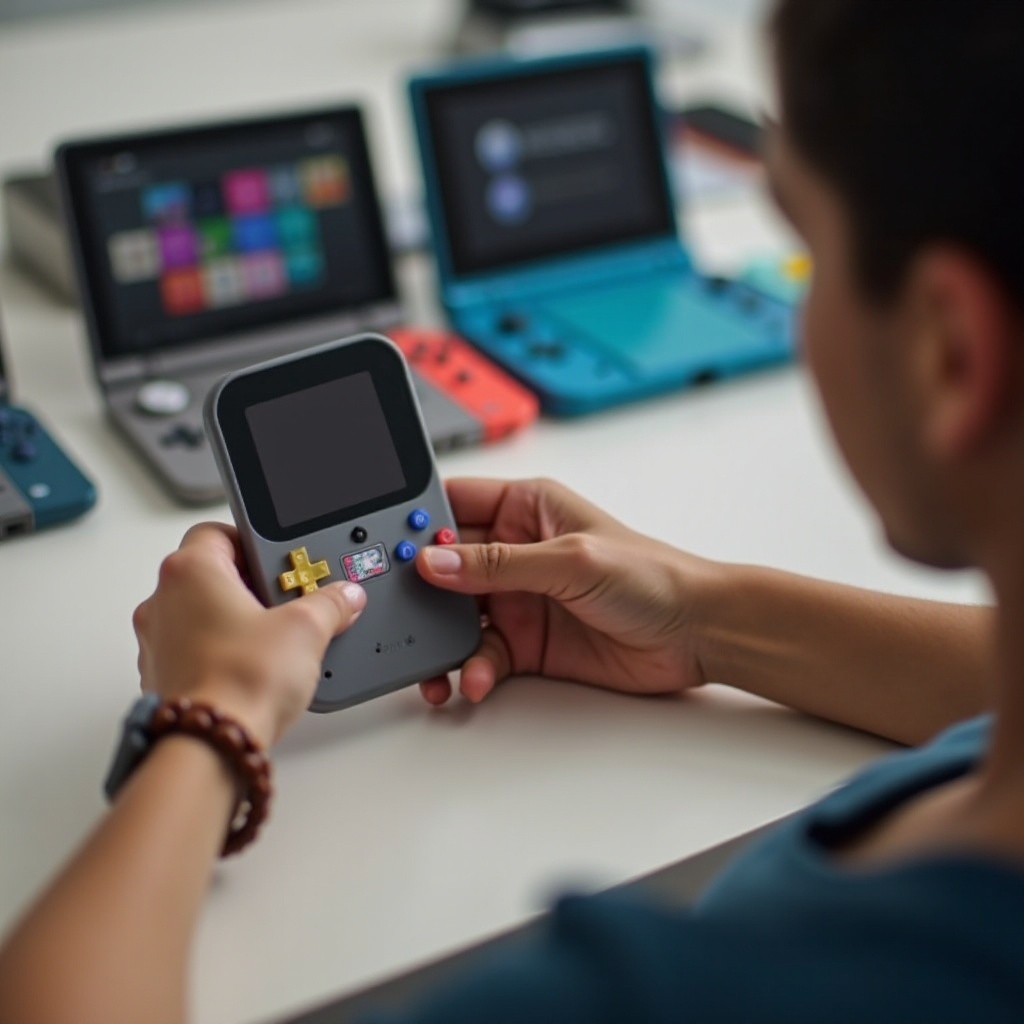
It’s important to check if your SD card is compatible with the Nintendo 3DS as a preliminary step. These consoles typically support standard SD cards, SDHC cards up to 32GB, and some models can now handle SDXC cards up to 128GB with a firmware update.
Ensuring compatibility right from the start can often prevent unnecessary troubleshooting. Once you’re confident in the compatibility of your SD card, you can more accurately pinpoint potential issues.
Diagnosing SD Card Detection Issues
If your 3DS isn’t detecting the SD card, it’s crucial to identify whether the problem stems from the console or the card itself. Here are a few diagnostic steps:
-
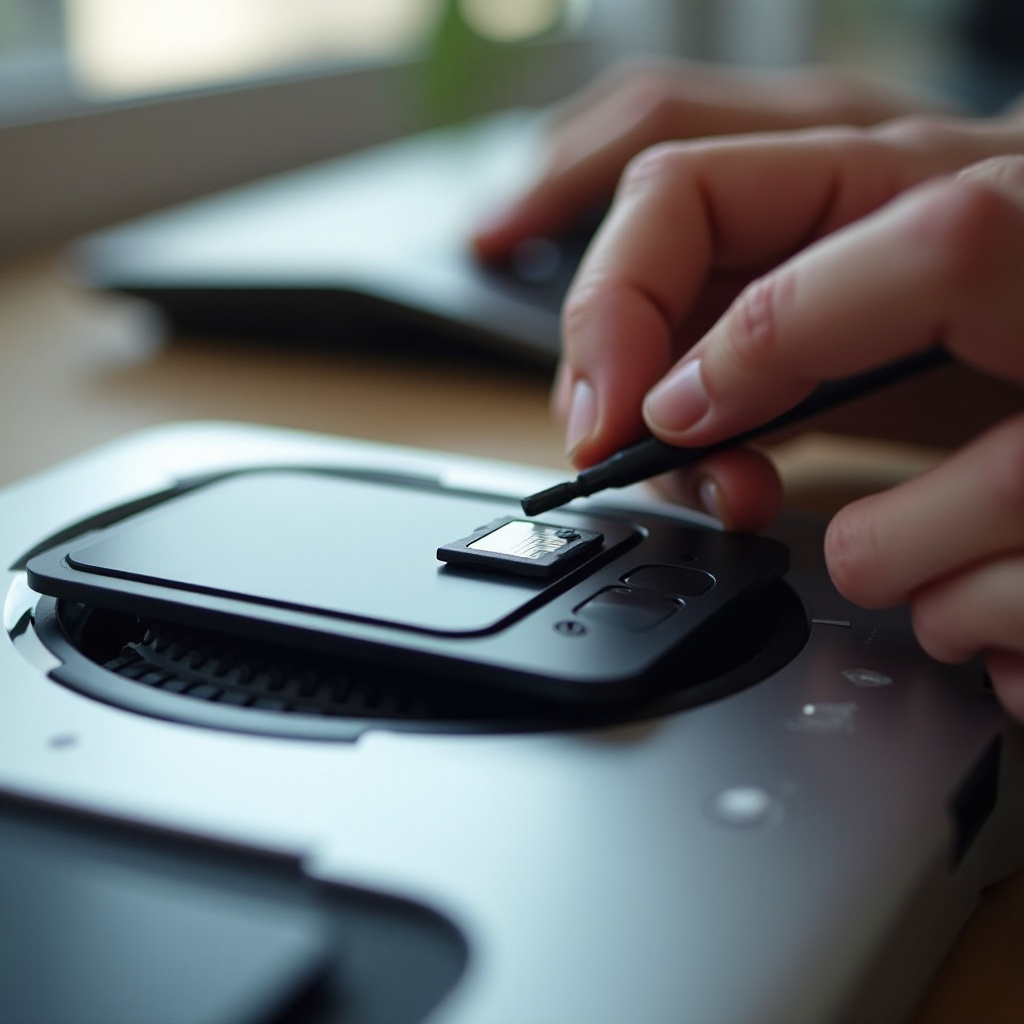
Check Connection Integrity: Verify that the SD card is firmly inserted into the 3DS slot. Remove and reinsert it to ensure a secure connection.
-
Inspect for Physical Damage: Look over the SD card and 3DS slot for any signs of damage, dirt, or dust that might impede connectivity.
-
Test on Other Devices: Insert the SD card into another device like a computer to see if it reads data correctly. Likewise, try a different SD card in the 3DS to determine if the problem is isolated to the card or the console.
These diagnostic steps lay the groundwork for effective troubleshooting, ensuring you target the root of the problem. Proceeding with basic troubleshooting steps following this can often lead to a quick fix.
Basic Troubleshooting Steps
Armed with a clearer understanding of the issue, begin with these fundamental steps that often resolve SD card detection problems:
-
Reinsert the SD Card: A simple reinsertion, ensuring a snug fit, often resolves the problem. Clean contacts gently with a microfiber cloth if needed.
-
Restart the 3DS Console: Power down your 3DS, remove the SD card, restart the device, then reinsert the card. This process can rectify minor software glitches causing detection issues.
-
Try Alternative SD Cards: Utilizing a different SD card helps determine whether the original card is faulty or the 3DS itself is the issue.
If these basic methods don’t resolve your problem, it’s time to move on to more advanced troubleshooting techniques that might involve some technical steps.
Advanced Troubleshooting Techniques
When basic fixes prove inadequate, more advanced strategies may be necessary:
-
Clean the SD Slot: Dust and debris can obstruct proper connections. Gently clear the slot using compressed air or a soft brush.
-
Verify on a Computer: Connect the SD card to a PC. If it’s recognized, back up any important data right away. You may want to format the card to the FAT32 file system, as this ensures compatibility with the 3DS.
-
Repair the File System: Use utilities like ‘Check Disk’ on Windows or ‘First Aid’ in Mac’s Disk Utility to fix any detected errors on the SD card’s file system.
Implementing these advanced techniques can help resolve more entrenched issues preventing your 3DS from reading the SD card. Now, let’s look at possible software solutions.
Software Solutions for SD Card Issues
In many cases, addressing the software aspect of the problem can lead to a resolution:
-
Update the System Software: Ensure your 3DS is equipped with the latest firmware. These updates can address and fix known glitches impacting SD card detection.
-
Utilize 3DS Repair Tools: Some 3DS models offer a system repair tool specifically aimed at resolving software-driven problems.
-
Reformat Options: If the problem persists, reformatting the SD card with a specialized tool can create a compatible structure and eliminate lingering issues.
Focusing on software solutions not only addresses current problems but also prevents potential future issues. If these solutions fail, replacing the SD card may be the next best step.

Replacing Your SD Card: When and How
There are instances when a new SD card becomes the necessary solution, especially if the current one is beyond repair:
-
Identifying When to Replace: Recurring issues, physical damage, or response failures on other devices highlight the need for a new card.
-
Selecting a Reliable Replacement: Choose a card from a trusted brand, ensuring it meets the 3DS’s specifications and format requirements.
-
Backup and Transition of Data: Before making the switch, backup existing data on your current card to a computer to avoid data loss during transitions.
Switching to a reliable, new SD card can rejuvenate your gaming experience, guarding against continued disruption. Let us wrap up these insights in our conclusion.
Conclusion
Addressing SD card detection issues with your 3DS requires a systematic approach involving compatibility checks, diagnostics, and thorough troubleshooting. By following the steps outlined in this guide, you should be able to restore your 3DS to its full glory. Regular maintenance and updates can further ensure a seamless gaming experience without interruption.
Frequently Asked Questions
What should I do if my 3DS still doesn’t detect the new SD card?
First, verify the compatibility of the new card. If it is compatible, try reformatting it to the FAT32 file system using a computer.
Can a corrupted SD card be fixed, or should it be replaced?
Minor corruptions can often be resolved using software repair tools or formatting. Severe corruption typically necessitates replacement.
Is there a way to recover lost data from an inaccessible SD card?
Data recovery tools like Recuva or EaseUS can help retrieve lost data, but the level of success varies based on the severity of corruption.