
Introduction
The frustration of trying to find the power button on a sleek Philips TV can often turn a simple task into a hassle. Philips, known for its modern and minimalistic designs, sometimes leaves users puzzling over its subtle button placements. This guide provides clear instructions on finding the power button on different Philips TV models and offers alternative ways to turn on your TV.
Locating the Power Button on Different Philips TV Models
Philips TVs have a sleek design where the power button might not be obvious initially. Depending on your model, the power button could be situated in several locations:
- Beneath the Screen: Usually under the Philips logo or towards the bottom edge of the screen.
- On the Back Panel: You might find it on the side or rear back panel, making it slightly trickier to see at first glance.
- Side Panels: Check along the edges of the TV, as buttons may reside there.
Identifying these common locations in your Philips TV will streamline your setup process, reducing frustration.
Visual Guide to Identifying the Power Button on Philips TVs
Visual identification can help confirm the right button. Look for a small, distinct button that often displays the universal power symbol – a circle with a line. Sometimes, the power button is located near an LED light indicator, which shows the power or network signal status. Familiarizing yourself with these visual cues can enhance your ability to locate the power button quickly.
Alternative Methods to Power On Your Philips TV
Understanding alternative ways to turn on your Philips TV can be a lifesaver, especially if you’re unable to locate the power button or if manual operation is inconvenient.
- Using the Remote Control:
- Ensure the remote has fresh batteries.
-
Simply point the remote at the TV and press the power button.
-
Mobile App Solutions:
- Download the official Philips TV app to transform your smartphone into a remote.
-
Ensure your TV and phone are on the same Wi-Fi network.
-
Voice Assistance Options:
- Connect your TV to a voice assistant, if compatible.
- Use a command such as ‘turn on Philips TV.
These methods provide convenience and accessibility, enhancing your overall experience.
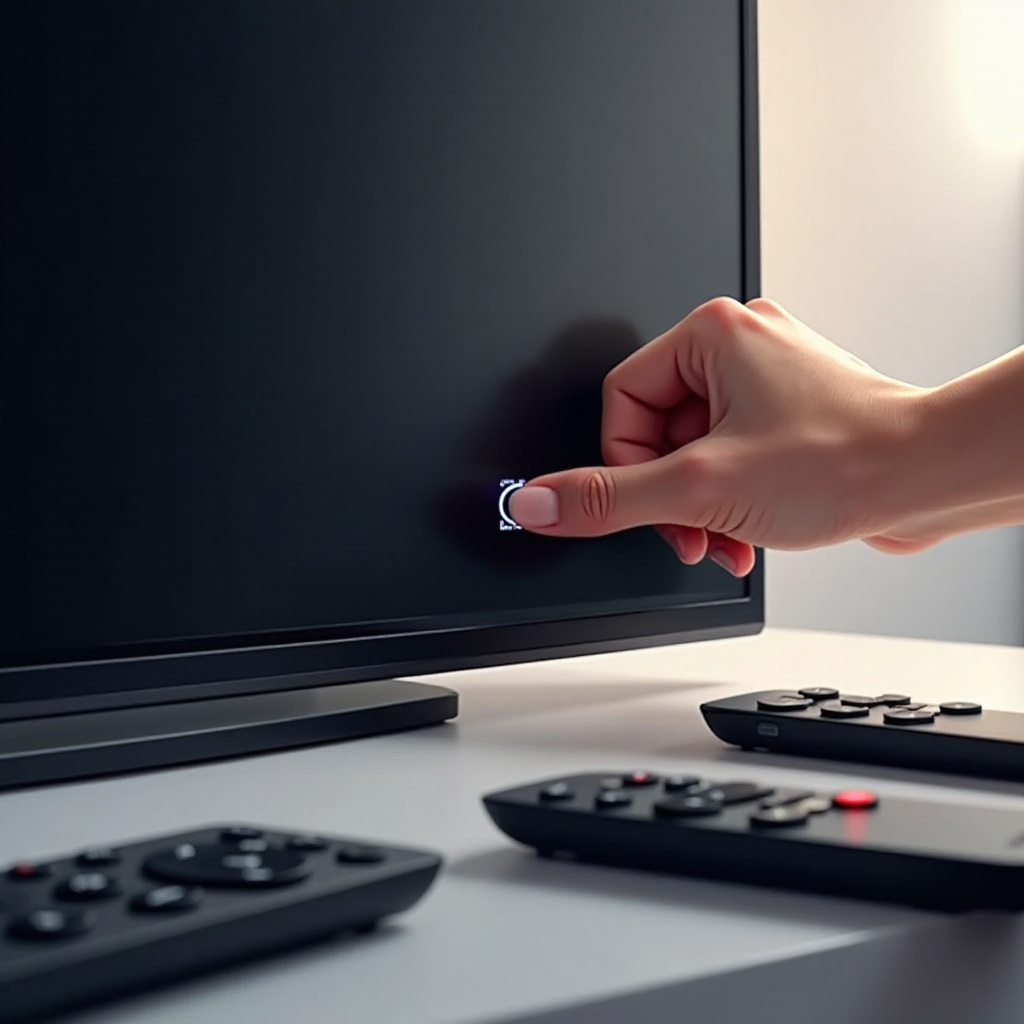
Troubleshooting: What to Do If the Power Button is Non-Responsive
Occasionally, even when the power button is located, it might not work due to technical problems. Here’s how you can address these issues effectively:
- Checking Power Connections:
-
Ensure the power cord is thoroughly connected and the outlet provides power, possibly testing with another device.
-
Verifying Remote Control Functionality:
- Ensure the batteries are fresh and functional.
-
Clean the remote’s infrared emitter for a clear signal path.
-
Resetting Your TV:
- Unplug your TV and wait 30 seconds before reconnecting and trying again.
These troubleshooting steps can often resolve issues without professional help and keep your TV functioning smoothly.
Tips for Philips TV Owners in 2024
In 2024, owning a Philips TV means staying updated with maintenance and software updates to ensure continued performance.
- Regular Maintenance: Keep the screen clean and ensure vents remain clear of dust.
- Software Updates: Regularly check for updates to keep your system secure and improved.
- Accessing Customer Support: Reach out to Philips support for queries or issues that persist despite troubleshooting efforts.
By following these tips, you can ensure the longevity and smooth operation of your Philips TV..
Conclusion
Locating the power button on a Philips TV shouldn’t be a daunting task. By knowing exactly where to look and what alternatives are available, you can efficiently manage your TV. Remember, troubleshooting steps can help overcome any non-responsive issues, ensuring a hassle-free viewing experience. Enjoy exploring all the functionalities your Philips TV has to offer.
Frequently Asked Questions
Where can I find the manual for my Philips TV?
You can find the manual on the Philips official website by entering your TV model number in the support section.
My Philips TV is not turning on, what should I do?
First, check the power connection and try using the remote to turn it on. If it still doesn’t work, attempt a reset or contact customer support.
How can I use voice commands with my Philips TV?
Ensure your TV supports voice commands and is connected to a compatible voice assistant device, then configure the settings and use voice commands to operate your TV.