
Keeping your phone’s USB port clean ensures it functions properly. Over time, dust and lint can gather, leading to charging issues or connectivity problems. By regularly cleaning your USB port, you can prevent these inconveniences and maintain your device’s health.
Introduction
A clean USB port is crucial for ensuring your phone operates effectively. Blocked ports can lead to troublesome charging or syncing difficulties, leaving you frustrated. This guide offers a straightforward method to clean your phone’s USB port, helping ensure your device continues to work seamlessly.

Understanding the Importance of a Clean USB Port
Keeping your USB port clean significantly prolongs your phone’s lifespan and functionality. Debris can create:
– Charging Issues: Reduced contact can cause slower charging.
– Data Transfer Problems: Dirty ports may struggle to communicate with other devices.
– Recognition Errors: Unclean ports might hinder the device’s ability to recognize peripherals.
Maintaining a clean port allows you to minimize these issues and keep your phone in top shape.
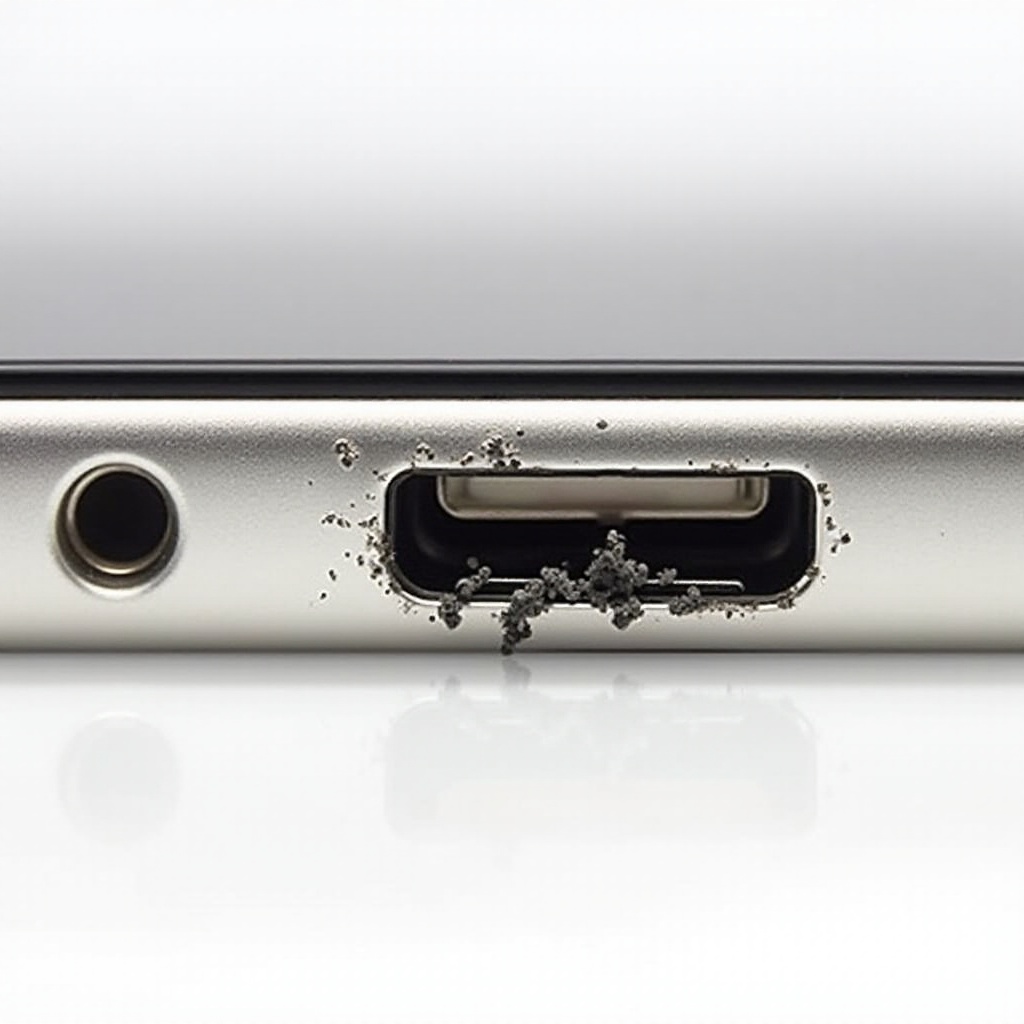
Identifying When Your USB Port Needs Cleaning
Spotting the signs of a dirty USB port can help you act quickly. Look for these symptoms:
1. Troubling Charger Connections: Frequent charging interruptions suggest it’s time to clean.
2. Unstable Links: Connection issues often indicate blockage.
3. Visible Debris: A simple look may reveal visible lint or dirt.
By performing basic troubleshooting like switching cables, you can establish that cleaning is necessary.
Preparing to Clean Your USB Port
Before cleaning your USB port, ensure you have everything you need:
– Required Tools: Gather a soft brush or a toothpick, and a can of compressed air.
– Safety Measures: Always turn off your phone to avoid accidents.
Proper preparation ensures the cleaning process is smooth and damage-free.
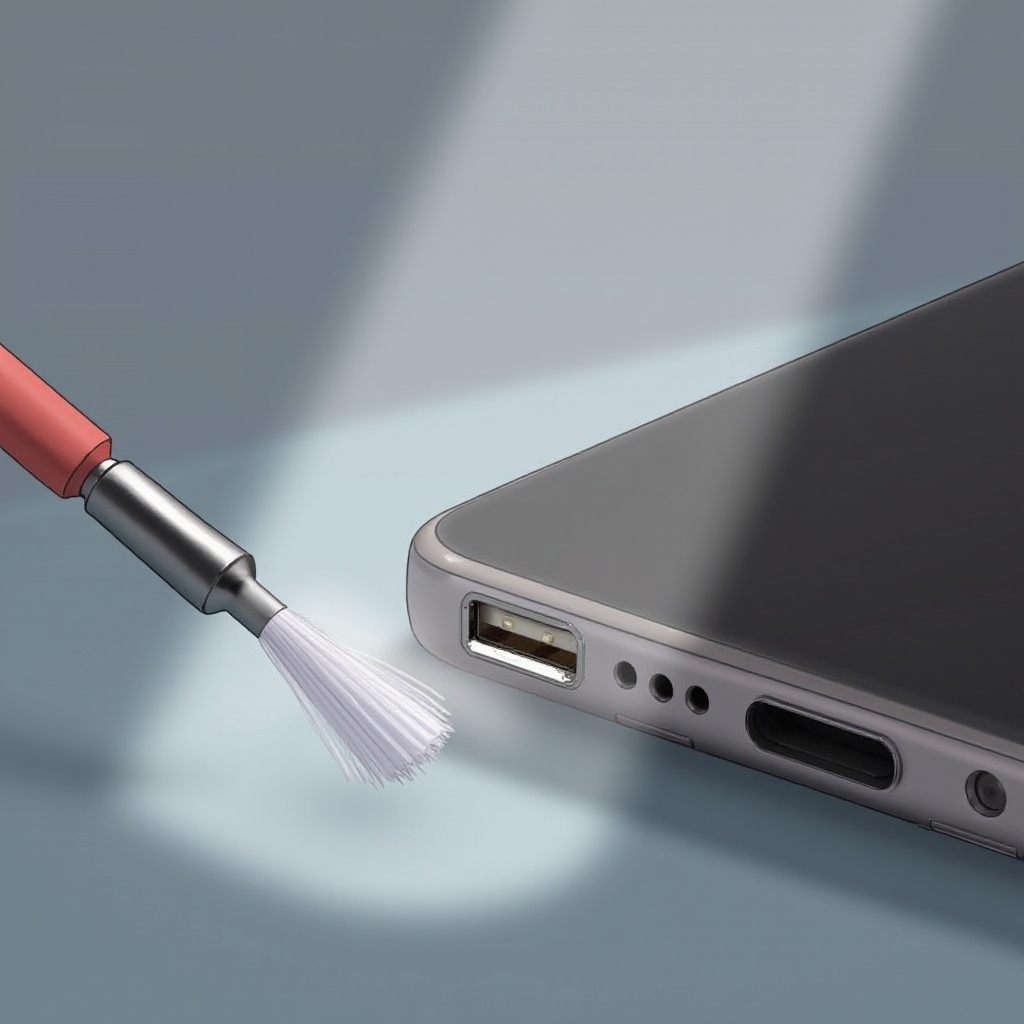
Step-by-Step Guide to Cleaning Your Phone USB Port
Cleaning a USB port demands attention to prevent device damage:
1. Power Off the Device: Ensure your phone is off before beginning.
2. Use a Non-Metallic Tool: Carefully use a toothpick or brush to dislodge dirt.
3. Apply Compressed Air: Use gentle bursts to remove remaining dust.
4. Check Functionality: After cleaning, check for debris and test by charging the phone.
Following these steps ensures effective cleaning without harming your device.
Mistakes to Avoid During the Cleaning Process
Exercise caution while cleaning to avoid mishaps:
– Avoid Moisture: Liquids can damage your phone’s internals.
– Stay Away from Metal Tools: Metal can scratch or short-circuit the port.
Knowing what to avoid helps protect your phone from cleanup-related risks.
Long-Term Maintenance Tips for Your USB Port
Incorporate these habits to prolong your phone’s life:
– Routine Inspections: Monthly checks help spot dirt early.
– Use Dust Plugs: Prevent dust accumulation with protective plugs when not in use.
Adopting these practices can extend your phone’s lifespan, keeping the USB port functioning well.
Conclusion
Regular USB port cleaning is a minor task that greatly enhances your phone’s performance. This guide helps you navigate the process and sidestep common errors. Simple steps ensure your device remains reliable and enjoyable to use.
Frequently Asked Questions
Can I use a toothpick to clean my phone’s USB port?
Yes, a toothpick is safe as it is non-metallic and can effectively remove debris.
How often should I clean my USB port?
Check and clean your USB port every few months, depending on environment and usage.
Is it safe to use compressed air on my phone?
Yes, short bursts of compressed air can safely remove loose particles from your USB port.