
Introduction
Transform the way you engage with ebooks using Kindle Scribe. This powerful tool allows you to annotate directly on your digital books, providing an enriching blend of reading and writing. With Kindle Scribe, you’re not just a passive reader – you’re an active participant in the story, study, or research you indulge in. Discover the potential of this innovative device and elevate your reading experience.

What is the Kindle Scribe?
The Kindle Scribe represents Amazon’s cutting-edge advancement in digital reading. By enabling users to write directly on ebooks with a stylus, it bridges the gap between traditional and digital media. Students, professionals, and leisure readers find immense value in its ability to synthesize reading and note-taking seamlessly. Beyond simply reading, the Kindle Scribe encourages deeper involvement with the material through its interactive features.
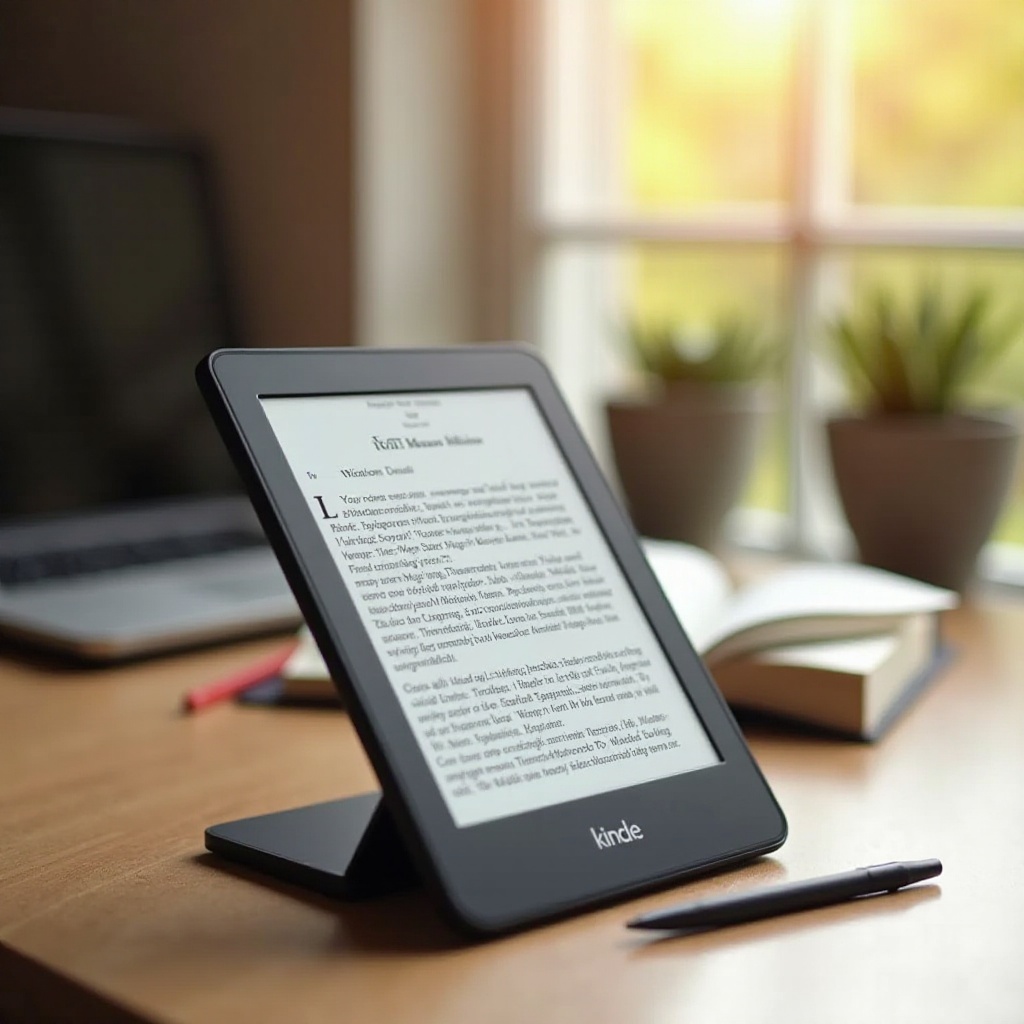
Key Features of the Kindle Scribe for Writing on Books
To truly harness the Kindle Scribe, it’s essential to understand its remarkable features that set it apart:
-
Annotation Tools: Enhance your reading by highlighting important passages, underlining key phrases, and jotting down insights. These tools ensure essential information is never overlooked.
-
Stylus and Touchscreen Functionality: The stylus offers a pen-on-paper experience, while the highly responsive touchscreen provides a natural, fluid interaction.
-
Integration with Other Devices: Sync your Kindle Scribe with other devices, ensuring your notes and annotations are accessible anytime, anywhere. This feature is vital for maintaining continuity across your digital ecosystem.
With a foundational understanding of these features, let’s move on to optimizing your Kindle Scribe setup.
Setting Up Your Kindle Scribe for Optimal Writing
For the best performance, tailor your Kindle Scribe to suit your preferences and needs.
- Initial Setup Steps:
- Begin by unpacking your Kindle Scribe and connecting it to Wi-Fi.
-
Register your device with your Amazon account to unlock all functionalities.
-
Personalizing Your Device Settings:
- Adjust the display to your liking – manage brightness, text size, and font to reduce eye strain and improve reading comfort.
-
Customize annotation settings to streamline your workflow.
-
Navigating the User Interface:
- Explore the home screen and menu options to become adept at navigating your Kindle.
- Familiarize yourself with the stylus operations and the touchscreen interface for a seamless transition.
Once personalized, let’s delve into how to effectively use the writing and annotation capabilities of your Kindle Scribe.
Best Practices for Writing and Annotating on Ebooks
Writing on ebooks with the Kindle Scribe is both enriching and practical. Here’s how to optimize the process:
-
Effective Note-Taking Techniques: Develop a system that might include symbols or shorthand to capture thoughts swiftly. Consistent annotation styles will aid comprehension.
-
Organizing Your Annotations: Use folders and tags to classify notes systematically, facilitating quick retrieval when needed.
-
Exporting and Sharing Notes: Harness the ability to share your insights by exporting annotations via cloud services or email.
Having mastered these practices, we’ll explore how to further enhance your reading experience with Kindle Scribe.
Maximizing Your Reading Experience with Kindle Scribe
Kindle Scribe can do much more than just enable writing; it can transform how you consume and interact with digital content:
-
Using Annotations to Enhance Comprehension: Reinforce learning by annotating and reviewing sections that might need further understanding.
-
Leveraging Annotations for Study and Work: Catalog your notes for academic or professional use, making projects and information retrieval more efficient.
-
Creative Uses in Different Fields: Writers can draft ideas, educators can prepare course materials, and professionals can outline strategies directly on their ebook texts.
Our next focus will be maintaining your device’s performance and handling any issues that might arise.
Troubleshooting and Optimization Tips
Understanding how to maintain your Kindle Scribe’s performance is crucial:
-
Common Issues and Solutions: If the device becomes unresponsive, consider restarting it. Regular software updates are essential for optimal functionality.
-
Maintenance Tips for Longevity: Clean your Kindle Scribe screen regularly and handle the stylus with care. Protective cases can prevent physical damage, ensuring your device remains in prime condition.
You are now equipped to enjoy all that the Kindle Scribe has to offer. Let’s conclude with some final thoughts.

Conclusion
Harnessing Kindle Scribe’s capabilities can dramatically change how you read and annotate ebooks. With its innovative features, it combines the convenience of digital media with the satisfaction of classical note-taking. Embrace these functionalities to expand your reading experience, and step confidently into the future of digital literature.
Frequently Asked Questions
How do I sync my annotations across devices?
Sync your Kindle Scribe with your Amazon account. Access your annotations by logging into the same account on any other Kindle device or app.
Can I share my notes with others?
Yes, export your annotations via email or cloud services and share them in PDF or text format with anyone.
What should I do if my Kindle Scribe isn’t responding?
Try restarting your device. If the issue persists, check for software updates or contact Amazon support for further assistance.